Tools · Tables
Turn a table photo into a CSV
Pick a photo, let Tables draft the cells, then check and save. The draft sits next to your image so you can fix misread numbers or broken rows before opening the CSV in a spreadsheet.
The real page from the app, on prepared samples. Its answers were recorded on a Mac and the demo replays them, so only the prepared examples work. It won't open your own files, and it needs JavaScript.
From image to cells
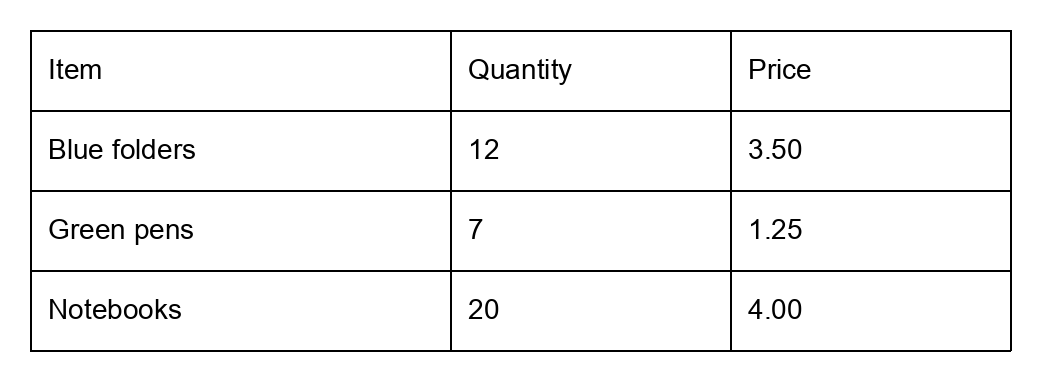
The draft the reader returned
| Item | Quantity | Price |
|---|---|---|
| Blue folders | 12 | 3.50 |
| Green pens | 7 | 1.25 |
| Notebooks | 20 | 4.00 |
All 12 cells matched the expected table, including the space in "Blue folders". Nothing needed fixing.
The CSV after review
"Item","Quantity","Price"
"Blue folders","12","3.50"
"Green pens","7","1.25"
"Notebooks","20","4.00"
Rows end with CRLF. Spreadsheets can still mangle dates or drop leading zeroes on import, so import those columns as text if it matters.
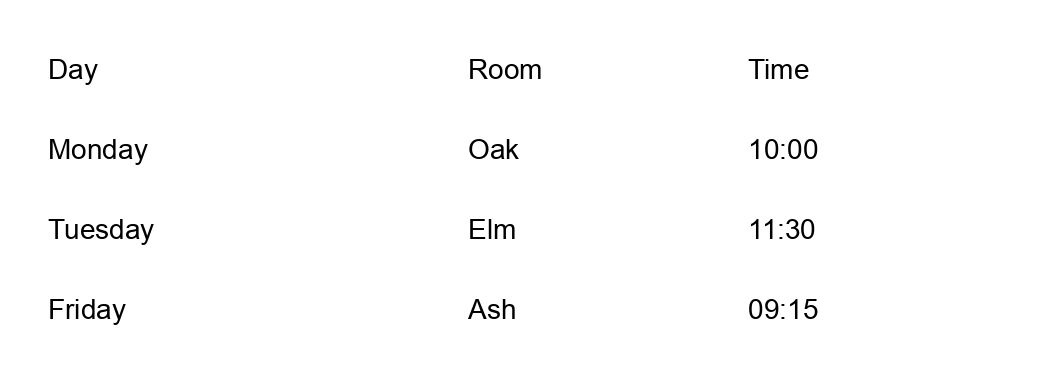
Where the reader got it wrong
Draft returned
| Day | Room | Time |
|---|---|---|
| Monday | Oak | 10:00 |
| Tuesday | Elm | 11:30 |
| Friday | Ash | 09:15 |
| empty cell | empty cell | empty cell |
Every expected cell matched, but the reader tacked on an empty row after the last booking. You'd delete row 5 before ticking the review box. The scorer counts this table as wrong.
Expected table
| Day | Room | Time |
|---|---|---|
| Monday | Oak | 10:00 |
| Tuesday | Elm | 11:30 |
| Friday | Ash | 09:15 |
The exact grid written before running the reader.
How it works
- Pick an image. One still JPEG, PNG or WebP, up to 15 MB and 25 million pixels. Rotate in 90° steps and crop tight to the table. The preview shows the exact pixels the reader will see.
- Read it. The local reader finds the rows, columns and cell text on your CPU. If it hits merged or irregular cells, it refuses the image rather than flattening them, and lets you try another.
- Check every cell. The editable grid sits next to the image. If the reader had to nudge a text fragment during alignment, it flags that cell with Check text position (that tells you placement shifted, not how confident OCR was). Add or remove rows and columns if the grid went off.
- Tick and save. Any edit unticks the review box. Once you confirm you've checked every cell, save the CSV. Every cell is quoted, empty cells stay empty, and anything that looks like a spreadsheet formula gets a leading apostrophe.
Bank statements as PDFs
Tables also reads text-PDF bank statements directly, with no model and no crop step. Plain code reads each word's position on the page, finds the money columns, carries blank dates down from the row above, and uses the printed running balance to tell money in from money out. The rows sit beside images of the pages, just like a table photo.
If a printed balance doesn't add up, Tables flags that row for you. When every balance checks out, it tells you — though that only verifies the amounts, so you still need to check dates and descriptions.
The CSV mirrors the statement rather than trying to categorise it. Columns are date, the text columns in page order, paid out, paid in and balance. Brought-forward and carried-forward rows stay in with just their balance. Amounts save without £ signs or commas, and overdrawn balances are negative.
The parser doesn't hardcode bank names. Before building the UI, I ran it on six of my own statements from two banks: every running balance added up, and I checked a page from each bank by eye. The second bank only worked after I tweaked the rules for its layout, and I haven't tried a third bank yet. Since then I've run a real statement from download to saved CSV in about 20 seconds, fixing a couple of cells along the way. It handles up to 30 pages and 500 rows, and skips scanned PDFs.
A year of checked statements feeds into Regulars. The full route is written up in A year of statements.
What works, and what doesn't
Start with a clear, upright, tightly cropped photo of one printed English table with no merged cells. Two cropped phone photos of printed test tables came back exact in the latest check. Handwriting, heavy tilt, blur, tiny type, spanning headings and dense layouts are untested. The reader can drop spaces, misread digits or invent empty rows — and a broken layout can still look neat — so check every cell, flagged or not.
Limits of the reader and review
The reader times out after 180 seconds, and drafts cap at 100 rows, 20 columns and 2,000 characters per cell. Alignment orders text fragments inside each cell, joins them with spaces and trims outer whitespace. Text whose centre falls outside the detected table box gets dropped, so a bad table boundary can silently lose content.
Rotating and cropping help the reader find the grid; they don't guarantee the cells are right. Cropped images live in browser memory as PNGs and your original file isn't touched.
Tables keeps no history. Clearing wipes the in-memory grid and image, though any CSV you saved stays wherever you put it.
Models used
For a PDF statement: none. Plain code parses the PDF using pdfplumber 0.11.7 and pypdfium2 5.13.0.
For an image, Tables runs four specialist PaddleOCR models packaged by RapidAI, all on your Mac's CPU.
- SLANet-plus
- Finds the table’s rows, columns and cell structure.
- PP-OCRv4 mobile text detector
- Finds regions of text in the image.
- PP-OCRv6 small multilingual text recogniser
- Reads the characters in each text region.
- PP-OCR mobile v2.0 orientation classifier
- Checks the orientation of text before recognition.
Together the four files come to about 34 MB, run by RapidTable 3.0.2 and RapidOCR 3.9.2. Setup downloads and verifies them once; normal use doesn't touch the network.
On an Apple M1 Pro (32 GB RAM), reading each of seven small invented tables took 1.0 to 1.3 seconds (3.4 seconds on the cold first run) and peaked at 500 to 556 MB of memory. The working copy with its Python environment was 366 MB. Setup hasn't been timed and other Macs haven't been tested. Those numbers come from the first study.
Status and what's next
Not available to download yet. Tables runs in the development Kettle app on macOS.
Checks so far cover five rendered tables and two cropped phone photos — see the full evidence page. I've also used Tables on 12 of my own jobs: it gave me nine drafts and refused three images (two handwritten, one small tilted photo), and two of those nine drafts were unusable. What's still unproven is how reliably anyone else catches the reader's mistakes.